Get the latest mod manager build for your platform. Verify integrity before install and use only official distribution channels.
Latest version
Version3.2.17
Developerebkr
Dependency stringebkr-r2modman-3.2.17
LicenseMIT (open source)
CategoryTools
Auto-updateYes, on app close
Recent release highlights
New game support including Crawlspace and Big Ambitions
Steam launch fixes on Linux and Flatpak via xdg-open
Profile UI alignment restored
Thunderstore ecosystem data updates
Game launch event emitter and RecursiveMelonLoader update fix
Config editor multi-select and large-load spinner improvements
Windows download
Approximate package size: 126 MB. Get R2ModMan the Thunderstore zip, extract, and run r2modman Setup X.X.X.exe. Run as administrator when prompted for system-wide install.
Run the AppImage or install a distro package if preferred
For Proton on Steam, place a .forceproton file in the game directory as a temporary workaround
How to Install R2ModMan?
Follow this Windows walkthrough after downloading the Thunderstore zip. Each step matches the official installer — version numbers in screenshots may differ slightly from the latest release.
01
Extract archive
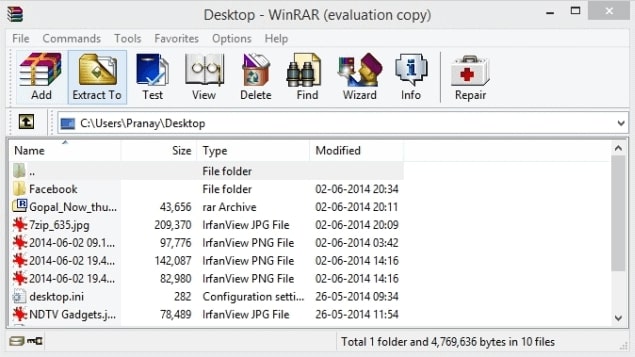
Get R2ModMan the R2ModMan zip from an official source, open it in WinRAR or another archive tool, and click Extract To to unpack the files into a folder you control.
Step 1 · Extract archive
Click to enlarge
02
Run setup
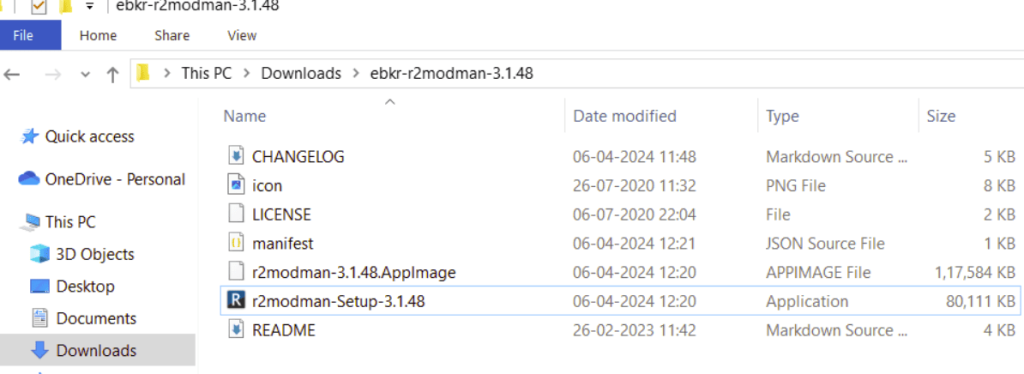
Open the extracted folder and double-click r2modman-Setup (the version number in the filename may differ). This launches the Windows installer.
Step 2 · Run setup
Click to enlarge
03
Installation scope
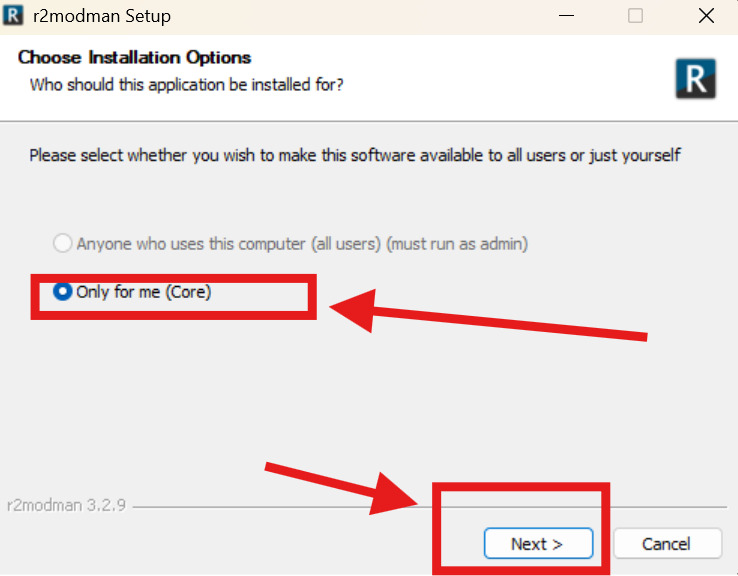
When asked who the app is for, select Only for me for a standard per-user install (recommended). Choose all-users only if you need a system-wide install and can run as administrator. Click Next.
Step 3 · Installation scope
Click to enlarge
04
Install location
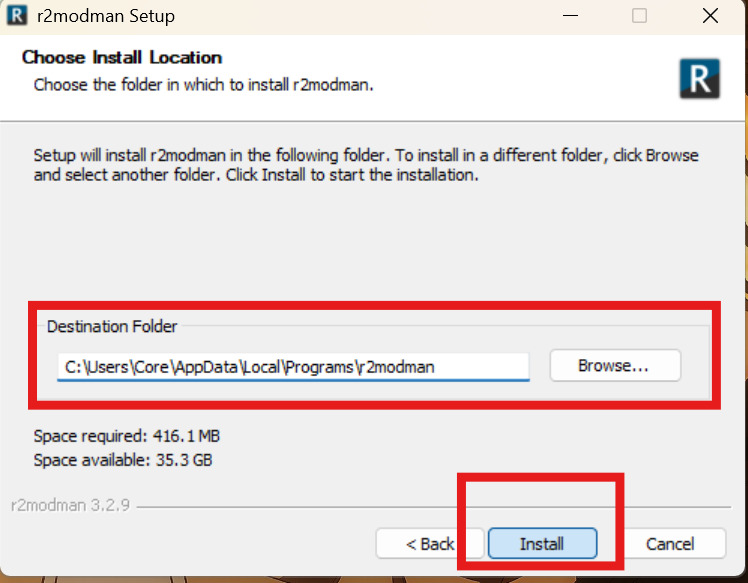
Review the destination folder — the default path under AppData\Local\Programs\r2modman works for most users. Use Browse to change it if needed, then click Install.
Step 4 · Install location
Click to enlarge
05
Finish setup
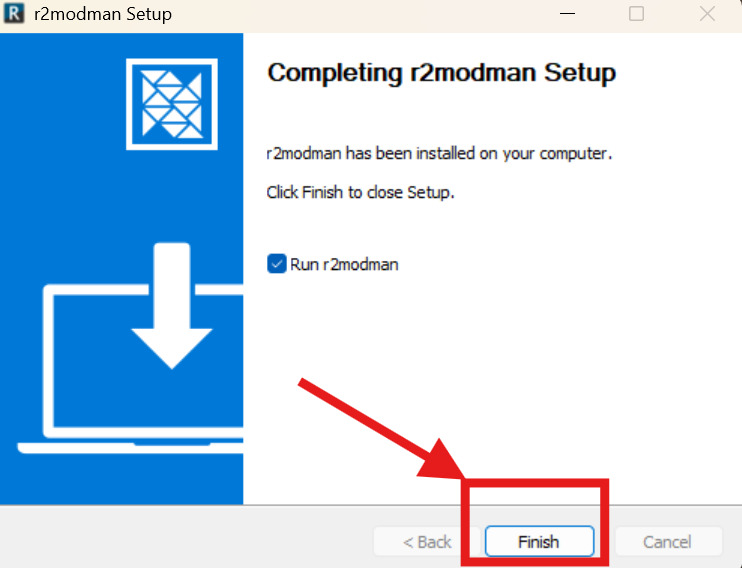
When setup completes, leave Run r2modman checked to open the app immediately, then click Finish. Select your game from the grid and create your first profile.
After installing the manager, pick your game from the grid, create a profile, and browse Thunderstore for mods. Risk of Rain 2, Valheim, Lethal Company, and dozens of other Unity titles are supported.
How to Update R2ModMan Mods?
Keeping mods current is straightforward. There are two ways to update mods inside the manager:
Method 1: One by One
✓ Open the profile that contains the mods you want to update.
✓ Click the Installed tab in the sidebar.
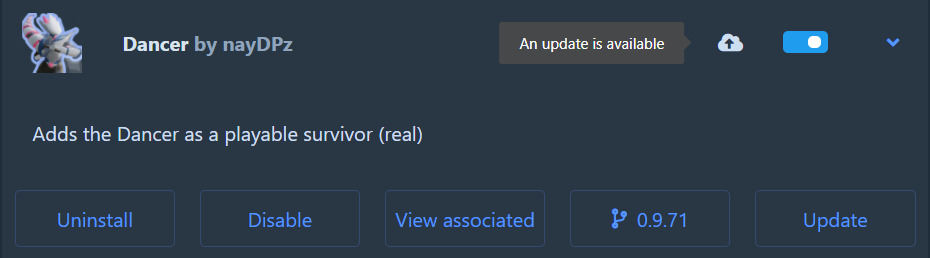
✓ Select a mod that shows the cloud update icon.
✓ Press Update on the mod card.
✓ Confirm Get R2ModMan with dependencies when prompted.
You can also click the cloud icon on a mod card directly to update without opening full details — useful when updating one mod at a time after a game patch.
Method 1 · Update one mod
Single mod update · Click to enlarge
Method 2: All at Once
✓ Open the profile you want to update.
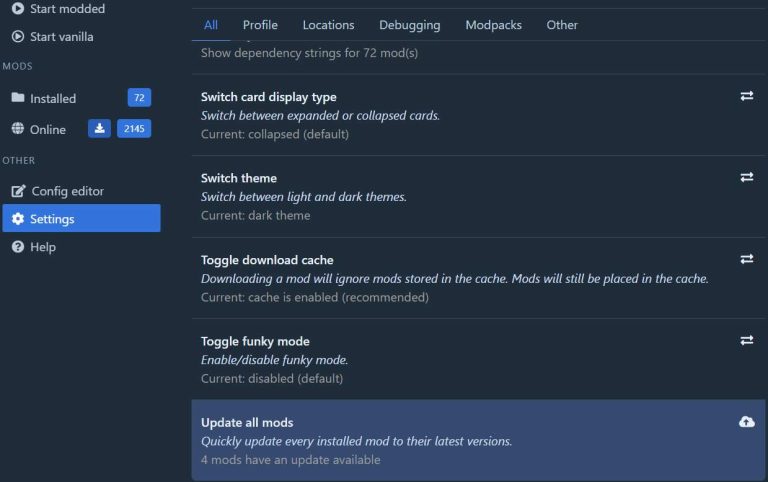
✓ Go to Settings in the sidebar.
✓ Open the All tab.
✓ Scroll down and click Update all mods.
✓ Confirm Update all to apply every available update.
Updating one by one is recommended when debugging crashes — you can see exactly which mod changed. If updates still fail, check our troubleshooting guide.
Method 2 · Update all mods
Bulk update · Click to enlarge
Quick start after install
✓ Launch R2ModMan and select your game from the grid.
✓ Create or choose a profile for your mod list.
✓ Open the Online tab and install mods with dependencies.
✓ Click Start modded to launch the game with your profile.
For a full walkthrough with more screenshots, visit the Tutorials page.
Getting started
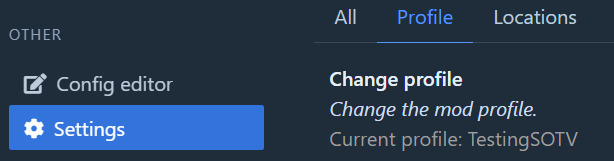
First launch · Click to enlarge
Source transparency
R2ModMan is open source. The canonical package is published on Thunderstore under ebkr/r2modman. Source code is maintained in the r2modmanPlus repository by the same developer. This website does not host installer files; download buttons on this page will point to your chosen official URLs when configured.
SHA checksums and signatures
When you download from official release pages, compare the published SHA-256 or SHA-512 hash against your local file using your operating system tools. On Windows, use CertUtil. On Linux, use sha256sum. Matching hashes confirm the file was not altered in transit.
Signed installers may be provided on some release channels. If a signature file is available, verify it with the developer public key before running the setup executable.
Antivirus false positives
Mod managers interact with game directories, download community DLLs, and may use installers that trigger heuristic detections. R2ModMan is widely used with millions of Thunderstore downloads and is not classified as malware by the open-source community.
False positives are more common when downloading from unofficial mirrors. If your antivirus quarantines the app, restore only after verifying hashes from an official source. Add an exclusion only when you have confirmed file integrity.